

Yes, you heard that right, I got Affinity Photo and Designer working on Linux
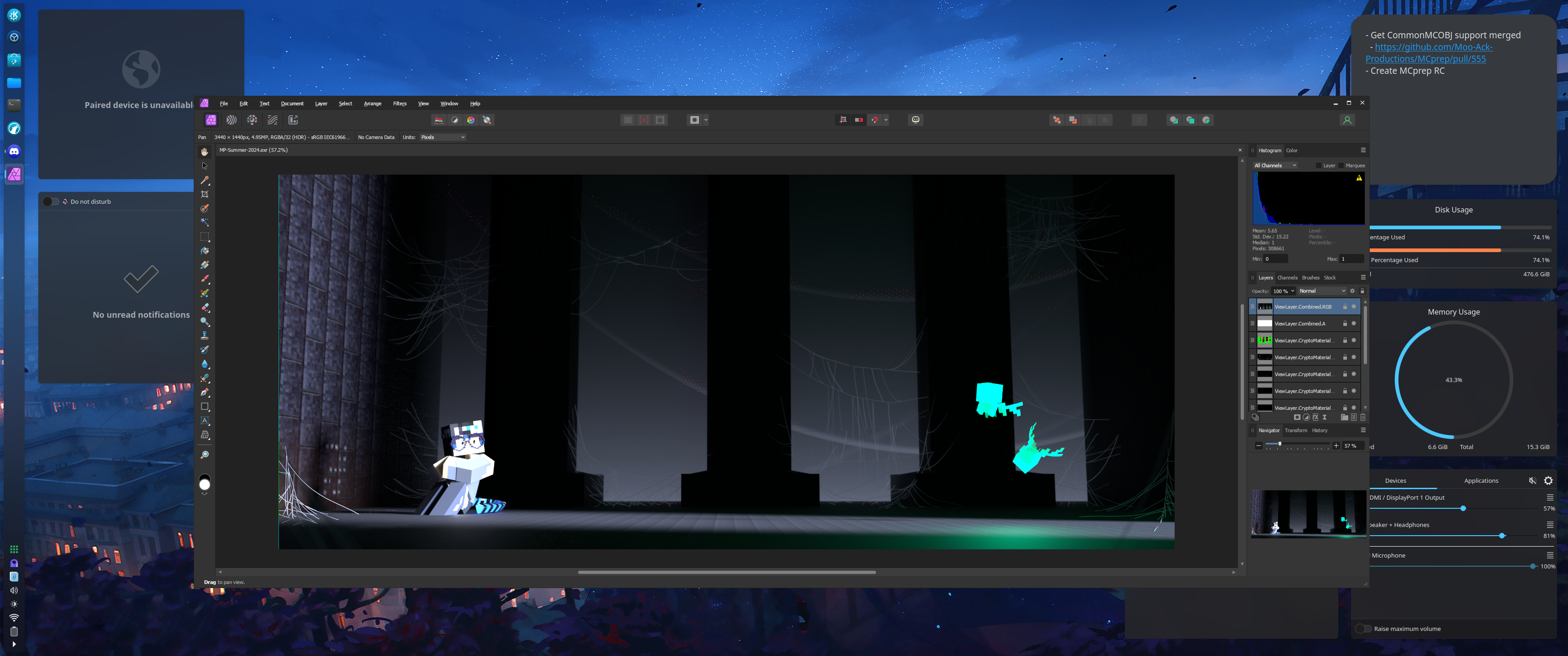
Here’s a write-up explaining how I did it, using Bottles
Some Important Info:
-
If you have Affinity 1, this is mostly unnecessary (except maybe Bottles setup), since Upstream WINE supports most releases of Affinity 1. Later versions (
1.10.3and above) might be a bit of a hit or miss though, since Serif changed their license manager at some point, and it requires some files from Windows (see WinMD for instructions on how to set that up) -
Much of this comes from Wanesty’s guide. If you discover any fixes, please comment those fixes on the repo. That said, Wanesty’s guide uses Rum to manage prefixes, whereas we’re using Bottles (just a personal preference on my part).
- Compatibility wise, this should work with Affinity 2.5 (the latest release)
- Wanesty’s repo also has a Tips and Fixes section if you come across some issues.
-
There are still many known problems with Affinity on WINE that have not yet been solved, such as user preferences not saving. That said, at least in the past few days, Affinity has worked pretty well on Linux
-
For those saying “Why use Affinity instead of Free Software?”, I’ll say this (and this will be a hot take): I run Linux for choice, and that includes the choice of using whatever software I want. If you don’t want to run Affinity at all, that’s fine, but don’t act like you’re somehow morally superior as a result. Many people (myself included) prefer Affinity over free software alternatives, whether it be personal preference or absolute necessity (I’m looking at you GIMP and your lack of multi-layer EXR support). If you’ve never had any issues, good for you, but that doesn’t mean they don’t exist.
Anyway, here’s a basic overview of what I did to get Affinity to work.
WINE
For Affinity 2, upstream WINE doesn’t support the necessary functions needed.
Thankfully, ElementalWarrior has created some patches to get Affinity to work on WINE1, which we’ll be using to get Affinity working on Linux
I don’t know about y’all, but I don’t really want to install all of the build dependencies on my system. In addition, you might have issues if you’re on a more stable distro. Thankfully, someone has made a Podman container (you can also use Docker if you wish) to build WINE from source without impacting the main system.
So first we need to clone ElementalWarrior’s patches. We only need the affinity-photo3-wine9.13-part3 branch, so to save time, we can simply
do the following:
git clone https://gitlab.winehq.org/ElementalWarrior/wine.git ElementalWarrior-wine -b affinity-photo3-wine9.13-part3Next we need to cd into repo and run the wine-builder container. I’ll be using Podman since that’s what the container was designed for,
but you can also use Docker
podman run -v ./:/wine-builder/wine-src wine-builderThis will take a while, so find something else to do in the meantime.
Bottles
Now we need to create a Bottle for Affinity. I’m assuming y’all know the basics of using Bottles and running executables with it (as well as installing dependencies), so I’ll simply give a basic overview.
First, copy the built WINE to the runners directory for Bottles. This can either be $HOME/.local/share/bottles/bottles/runners (if installed
natively) or $HOME/.var/app/com.usebottles.bottles/bottles/runners (if installed as a Flatpak). The built WINE should exist in a
wine-install folder.
cp -r path/to/ElementalWarrior-wine/wine-install/ path/to/bottles/runners/ElementalWarrior-9.3Create a new bottle for Affinity, and with it, set the following under Settings:
Components > Runner: ElementalWarrior-9.3Components > DXVK: DisabledComponents > VKD3D: DisabledDisplay > Advanced Display Settings > Renderer: VulcanCompatibility > Windows Version: Windows 10
Next, install the following dependencies:
allfontsdotnet35dotnet48monovcredist20152
WinMetadata Files
Before we can run the Affinity installer, we need to copy some files from a Windows install. Not a Window install of Affinity, but the actual
install of Windows itself. To do this, on Windows, copy C:/windows/system32/WinMetadata somewhere that you can access on Linux, and then copy
those files to your Affinity bottle. 3
cp -r path/to/WinMetadata path/to/bottles/bottles/[bottle-name]/drive_c/windows/system32/WinMetadataPreferences
One issue with Affinity on Linux is that preferences don’t save properly, and no one knows why. The best option for now is to set important
preferences (like OCIO config) on Windows, bring the config over from AppData/Roaming to the WINE bottle, and then change the XML as needed
for any paths. Not ideal, but better then nothing.
With all of that done, you can now run the installer for any Affinity product! Like I said earlier, check out Wanesty’s repo if you come across any issues, as this guide is simply an Bottles adaption of her guide.
Enjoy!
Footnotes
-
Footnote for transparency: This tutorial used to use the ElementalWarrior fork of WINE 8.14, then Lukas Magauer rebased those patches for WINE 9.12. Finally, ElementalWarrior updated the patches to WINE 9.3. Yeah welcome to WINE development. ↩
-
I’ve heard this can cause some issues with crashing, and Wanesty has removed it from her guide as a result. I’m keeping it here since it helps with export bugs, but do be aware of that. ↩
-
For legal reasons, I cannot distribute these files. ↩